A small desk can leave plenty of room for a pointing device but too little room to move it. A stationary trackball changes that arrangement: the base stays put while you rotate a ball to move the pointer. The space you need is the device’s footprint and room for your hand, rather than a broad area for repeated mouse sweeps.
The Logitech M570, Kensington Expert Mouse Wireless Trackball and ELECOM HUGE M-HT1DRBK illustrate three different control layouts. Logitech puts the ball beneath the thumb. Kensington uses a centrally placed finger ball with a surrounding scroll ring. ELECOM combines a finger ball with a right-handed body and thumb-side wheel. These are established models, including older hardware; current local prices and stock were not verified on October 24, 2026. We are comparing control arrangements, not promising a medical benefit.
Research disclosure: GearTrio Editorial has not hands-on tested these devices. This is original desk-research synthesis of manufacturer documentation and the independently published hands-on reviews linked beside the relevant claims. Manufacturer specifications, attributed reviewer observations and our conditional editorial recommendations are separated. We do not combine different test methods into a numerical ranking.
Thumb movement and finger movement are different choices
With a thumb-operated ball, your fingers remain near familiar mouse buttons while the thumb handles pointer movement. With a finger-operated ball, the division changes: fingers rotate the ball and other digits handle clicks and scrolling. Neither arrangement automatically suits everyone. Think about which movement feels controllable and whether the buttons remain reachable without shifting your entire hand.
A stationary design is useful in a cramped workspace, but “large” and “heavy” have different implications here. Extra mass does not have to be accelerated across a mousepad, yet the body can still occupy too much desk space or place a control too far away. Measure the available area and leave room to remove and clean the ball according to the manufacturer’s guide.
| Product | Manufacturer | Documented design / practical fit |
|---|---|---|
| Logitech M570 | Logitech | Right-handed thumb ball; Unifying receiver; one AA; no Bluetooth |
| Kensington Expert Mouse Wireless Trackball | Kensington | Ambidextrous finger ball; scroll ring; Bluetooth/receiver; removable wrist rest |
| ELECOM HUGE M-HT1DRBK | ELECOM | Right-handed 52 mm finger ball; tilting wheel; receiver/two AA; no Bluetooth |
Logitech M570
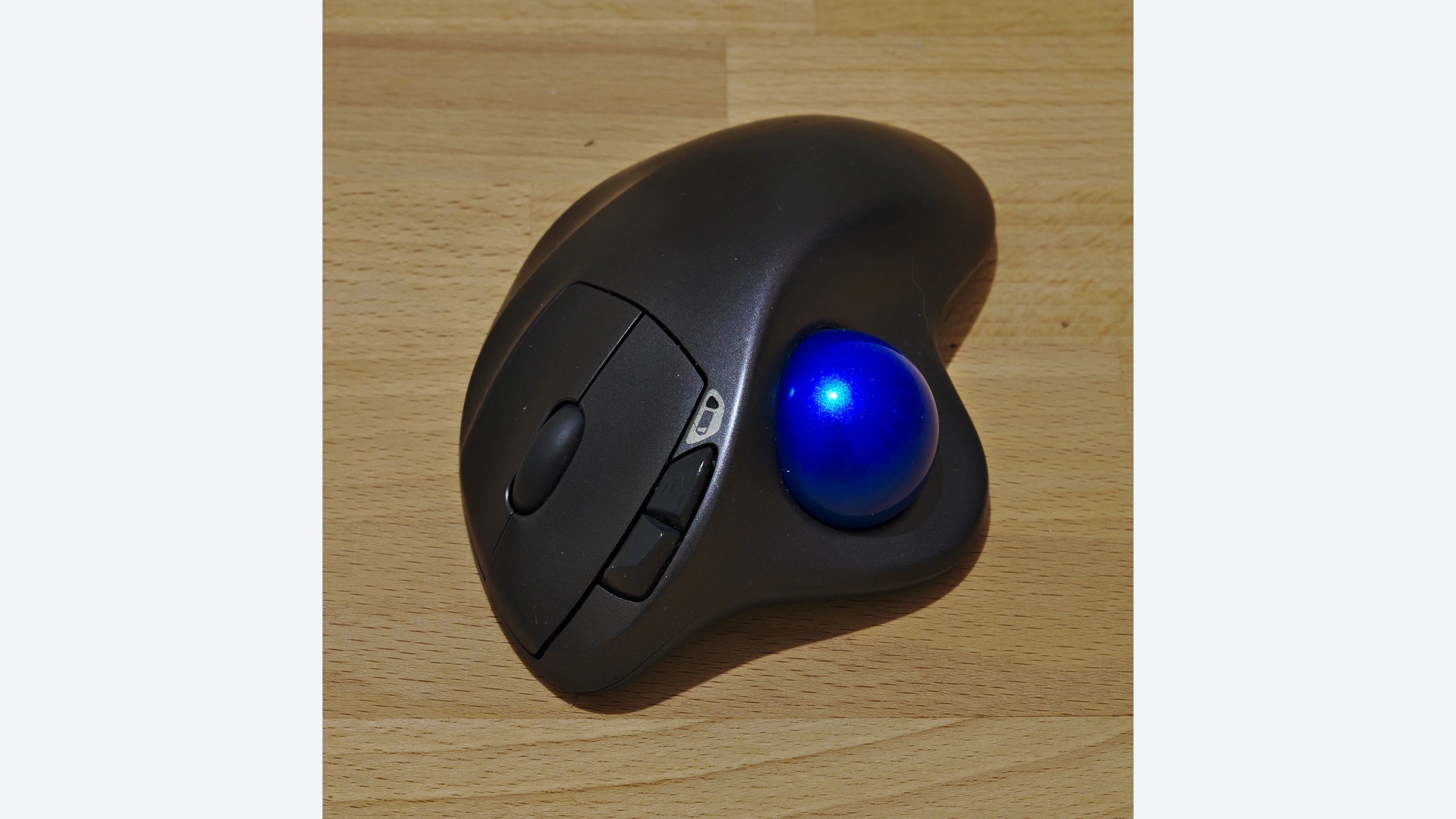
The original M570 is a right-handed thumb trackball with a conventional top scroll wheel. Logitech’s launch documentation identifies its Unifying receiver and single AA power supply. It has no Bluetooth connection. This is the M570, not the newer M575 or MX ERGO; the appearance of a newer device in a seller’s recommendations does not change the specifications of the original model.
RTINGS’ M570 test found its right-handed shape comfortable for palm and claw use, with a reach caveat for smaller hands. It also noted the fixed sensitivity and polling settings and limitations of the older configuration software on macOS. Those restrictions matter if you expect extensive remapping rather than straightforward pointer input.
Our editorial recommendation is to consider it when you want to keep a familiar finger-button arrangement while moving the pointer with your thumb. Confirm that this particular movement suits you during a return period. Do not assume that a comfortable review sample guarantees your own experience. Check that the correct receiver is included, especially on a used listing, and verify the software available for your operating system. We avoid quoting an exact sensitivity figure because historical sources disagree; the useful limitation here is that it is not a user-adjustable setting in the cited review.
Kensington Expert Mouse Wireless Trackball
Kensington’s wireless Expert, SKU K72359WW, places a large finger-operated ball above four buttons and surrounds it with a dedicated scroll ring. The official product page lists both Bluetooth LE and a USB receiver, a removable wrist rest and a limited three-year warranty. The similarly named wired Expert is a separate SKU; do not infer wireless connectivity from the family name alone.
RTINGS’ hands-on Expert Wireless review described sturdy stationary construction and favorable ergonomics for office use. It also emphasized the large format and poor suitability for travel, including a ball that can fall out when inverted. The reviewer’s performance findings do not support treating it as a substitute for a fast gaming mouse.
We would consider the Expert when you want a central finger ball, prefer a ring for vertical scrolling, or need the option to avoid occupying a USB port. Its layout is ambidextrous, unlike the right-handed shells of the other two. Try the reach to all four buttons with either hand you intend to use. The review describes TrackballWorks; the current product page also links newer configuration software. Check the supported operating system and actual application before expecting the old and new utilities to expose identical options or settings.
ELECOM HUGE M-HT1DRBK
The original wireless HUGE uses a 52 mm finger ball, an integrated palm rest and a thumb-side tilting wheel. ELECOM’s exact M-HT1DRBK page specifies a 181.9 × 114.7 × 57.2 mm body and approximately 260 g without its two AA batteries. It connects through a USB-A receiver, with no Bluetooth. Its eight buttons plus two wheel-tilt directions explain why “ten inputs” should not be read as ten separate physical buttons.
RTINGS’ hands-on HUGE review found a supportive right-handed design and many customizable controls, but reported some wheel/button wobble and less smooth ball movement than certain alternatives. It also cautioned against the broad shape for small hands. These are observations about the tested original model, not the newer HUGE PLUS.
Our preference would be the HUGE when you want finger-ball control while retaining a conventional wheel with horizontal tilt, and have enough room for the substantial base. Confirm the wheel and adjacent buttons are reachable together. Its three hardware sensitivity steps offer a practical difference from the M570’s fixed setting. ELECOM’s Japanese page lists six months of warranty coverage; that does not establish the terms of an imported or second-hand purchase. Verify local support, current Mouse Assistant compatibility and receiver inclusion before choosing a particular seller.
How to assess a trackball without a misleading ranking
Begin with four ordinary tasks: place the pointer within a small text field, drag a window, select a line of text and scroll a long page. These are suggestions for your own assessment, not tests performed by GearTrio. Notice whether you can stop the ball deliberately and click without disturbing the pointer. A layout that feels unfamiliar for the first few minutes may require practice, but difficulty reaching a control should not be dismissed as a specification issue.
For the M570, pay attention to sustained thumb control and access to the upper buttons. For the Expert, compare the ring with a normal wheel and check how your fingers reach the large surrounding buttons. For the HUGE, check whether the integrated support places your hand at the correct distance from the ball and wheel. These questions are more useful than assuming the largest ball or lowest device weight is inherently preferable.
Bluetooth availability is a practical dividing line. The Expert can avoid a receiver on a compatible host. The M570 and original wireless HUGE require their USB connection hardware, potentially including an adapter on a laptop with only USB-C ports. They run on replaceable AA cells, but the manufacturers’ runtime claims use different assumptions. We do not convert them into a measured battery-life league table.
Maintenance also belongs in the decision. Follow the exact guide for ball removal and cleaning, and keep the supporting surfaces free from debris. On a used example, examine ball motion throughout a complete rotation, test every button and scroll direction, and check battery contacts. Avoid assuming that uneven movement is always a software setting. Confirm a return option if you cannot assess the physical condition in advance.
Choose the movement you want to make
Choose the M570 for thumb control with familiar top buttons, the Expert Wireless for a central finger ball and scroll ring with Bluetooth flexibility, or the original HUGE for right-handed finger control with an integrated rest and tilt wheel. The Expert is the relevant candidate here for use with either hand. None should be selected on an unverified promise to prevent or treat discomfort.
If you decide a moving mouse better suits your tasks, our existing work-mouse comparison covers three alternatives. The trackball decision is primarily about the division of work between your fingers and thumb, followed by reach, connection requirements and the condition of the exact unit you can buy.
Featured photograph: Only Logitech M570 is pictured; the other two compared models are not shown. Original right-handed M570 with a blue thumb ball; a used example with visible surface wear, not a depiction of new retail condition. Photo: Trougnouf, via Wikimedia Commons original source; CC BY 4.0. Resized with neutral padding where needed to a 16:9 canvas and encoded as WebP; embedded metadata removed. No additional device cropping, retouching, generated detail or upscaling. No photographer endorsement is implied.
.jpg?utm_source=geartrio.com&utm_medium=referral&utm_campaign=m570-vs-expert-mouse-wireless-vs-elecom-huge)